
Ananth Desai
Dec 12, 2025
This article provides an in-depth tutorial on creating native iOS components for React Native, addressing the old architecture. It begins by outlining the key reasons for using native components, such as performance needs and access to specific platform APIs, contrasts the old architecture’s asynchronous bridge with the new architecture’s synchronous JSI, explaining the benefits of the modern approach.
The core of the article is a practical, hands-on guide to building a native UI component using the old architecture. It walks through setting up a new library, understanding the boilerplate code, and creating a custom native view in Swift. The roles of the .swift, .mm, and bridging header files are demystified, with clear explanations of how they work together to expose native code to JavaScript.
Finally, it serves as a valuable reference by documenting the most important macros used in native module development, such as RCT_EXPORT_MODULE, RCT_EXPORT_METHOD, and RCT_EXTERN_MODULE. It also covers essential communication patterns for sending data between native code and JavaScript, including callbacks, promises, and the RCTEventEmitter for handling continuous events. This guide equips developers with the foundational knowledge needed to extend React Native’s capabilities with custom, high-performance native iOS components.
- Introduction
- Old vs New Architecture - High Level Overview
- Setting Up Your First Native Module (Old Architecture)
- Understanding the Boilerplate
- Creating a Native Component
- The `RCT_EXTERN_MODULE` Macro
- The `RCT_EXPORT_VIEW_PROPERTY` Macro
- Macros
- The `RCT_EXPORT_MODULE` Macro
- The `RCT_EXPORT_METHOD` Macro
- The `RCT_REMAP_METHOD` Macro
- The `RCT_EXTERN_METHOD` Macro
- Communication Patterns
- Callbacks and Promises
- Event Handling
- Exporting Constants
- Conclusion
Introduction
React Native is a powerful framework, but sometimes you’ll hit a wall where JavaScript just isn’t enough. That’s where native components come in. They allow you to break out of the JavaScript world and write code directly in Swift or Objective-C, giving you the full power of the native platform.
Here are some common scenarios where you might need to build a native component:
- Platform-specific APIs: React Native doesn’t expose every single native API. If you need to access a specific iOS-only feature, like ARKit or the latest Core ML models, you’ll need to write a native component to bridge that functionality to your JavaScript code.
- Performance-critical operations: For tasks that require high performance, like real-time camera processing, complex animations, or heavy computations, native code will almost always outperform JavaScript.
- Existing native libraries: If your company has an existing native SDK or you want to use a popular third-party native library, you can wrap it in a native component to use it in your React Native app.
- Hardware integrations: When you need to communicate with hardware, like Bluetooth devices, NFC readers, or biometric sensors, you’ll need to use the native platform APIs.
This series will cover the old and new architecture of building native iOS components in React Native.
Old vs New Architecture - High Level Overview
Before we dive into building our first native module, it’s important to have a basic understanding of the two different architectures you’ll encounter in React Native: the Old Architecture and the New Architecture.
For years, the Old Architecture was the only way to build native modules. It’s still widely used and supported, so you’ll definitely come across it in existing projects and libraries. The key thing to understand about the Old Architecture is that it relies on an asynchronous bridge.
This bridge acts as a middleman, passing messages between your JavaScript code and the native platform. These messages are serialized as JSON, which can lead to performance bottlenecks, especially when you’re sending a lot of data back and forth.
In React Native 0.68, the New Architecture was introduced. The New Architecture (Turbo Modules and Fabric Views) gets rid of the asynchronous bridge and instead uses a new technology called JSI (JavaScript Interface). JSI allows your JavaScript code to communicate directly and synchronously with the native platform, which results in better performance and a more seamless integration between the two worlds. The New Architecture also introduces Codegen, which automatically generates type-safe interfaces, reducing the chances of runtime errors.
As of React Native 0.72, the New Architecture is the default architecture. However, you can still opt out of it. You can read more about the New Architecture in the React Native documentation and this Blog post.
Setting Up Your First Native Module (Old Architecture)
To create a new library, you can use the create-react-native-library tool. This will generate a new native module library for you. However, to generate a library with the Old Architecture, you’ll have to use older versions of this tool.
npx create-react-native-library@0.48.9 OldArchitecture
For the sake of covering most of the provided macros, we’ll be creating a library of Legacy Native View type. However, you can choose to create a library of Legacy Native Module type based on your needs.
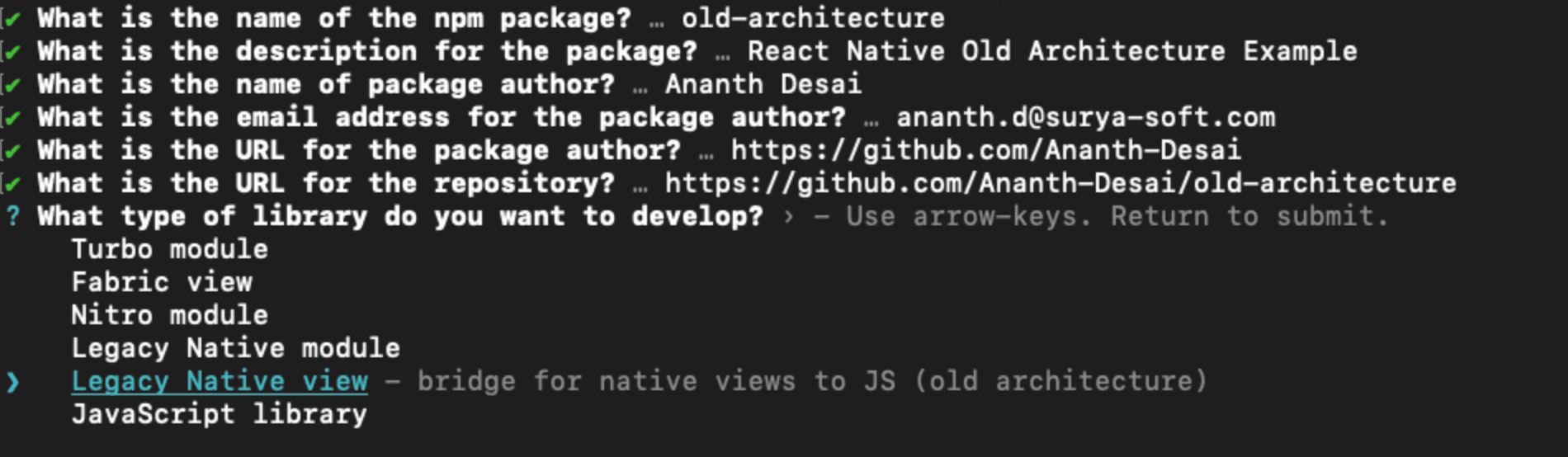
Most of our focus will be on the ios folder:
OldArchitecture/
├── example/
├── ios/
|   ├── OldArchitecture-Bridging-Header.h
|   ├── OldArchitecture.mm
|   └── OldArchitecture.swift
├── src/
├── index.tsx
Let’s take a deeper look at the boilerplate code generated for us.
Understanding the Boilerplate
Just as in any other project, the index.tsx file is the entry point for our library. Let’s take a look at the code:
import {
  requireNativeComponent,
  UIManager,
  Platform,
  type ViewStyle,
} from 'react-native';

const LINKING_ERROR =
  `The package 'old-architecture' doesn't seem to be linked. Make sure: \n\n` +
  Platform.select({ ios: "- You have run 'pod install'\n", default: '' }) +
  '- You rebuilt the app after installing the package\n' +
  '- You are not using Expo Go\n';

type OldArchitectureProps = {
  color: string;
  style: ViewStyle;
};

const ComponentName = 'OldArchitectureView';

export const OldArchitectureView =
  UIManager.getViewManagerConfig(ComponentName) != null
    ? requireNativeComponent<OldArchitectureProps>(ComponentName)
    : () => {
        throw new Error(LINKING_ERROR);
      };
From this, we can see that we’re exporting a component called OldArchitectureView. We see some conditional logic that checks if UIManager.getViewManagerConfig(ComponentName) is not null.
Let’s come back to this check later. For now, let’s focus on the requireNativeComponent function.
This returns a HostComponent<OldArchitectureProps> type. It takes a type parameter that specifies the props that the component accepts. In our case, it’s the OldArchitectureProps type. The HostComponent is a type that represents a native component that is managed by the native platform. In essence, it’s a wrapper around the native component that allows us to use it as a React Native component.
If we look at the example project, we can see the OldArchitectureView component being used in the App.tsx file like any other React Native component.
import { View, StyleSheet } from 'react-native';
import { OldArchitectureView } from 'old-architecture';

export default function App() {
  return (
    <View style={styles.container}>
      <OldArchitectureView  />
    </View>
  );
}
P.S. Before running the example project, you need to make sure that you have run npm install in the example folder and pod install in the example/ios folder.
Running the project will result in a runtime error saying that the old-architecture package is not linked.
We see this error not because the package is not linked, but because the OldArchitectureView native component doesn’t exist yet.
Let’s look at the ios folder to see what’s going on.
OldArchitecture/
├── ios/
|   ├── OldArchitecture-Bridging-Header.h
|   ├── OldArchitecture.mm
|   └── OldArchitecture.swift
The OldArchitecture-Bridging-Header.h file is the bridging header for the OldArchitecture native module. This file is used to bridge the Objective-C headers of the React Native framework into our native code, which in turn allows us to use the macros, properties and methods of the RCTViewManager and RCTBridgeModule classes.
// OldArchitecture-Bridging-Header.h

#import <React/RCTBridgeModule.h>
#import <React/RCTViewManager.h>
The OldArchitecture.swift file is the Swift implementation file for the OldArchitecture native module. This file is used to define the Swift class that will be used to implement the native module.
// OldArchitecture.swift

@objc(OldArchitecture)
class OldArchitecture: NSObject {

  @objc(multiply:withB:withResolver:withRejecter:)
  func multiply(a: Float, b: Float, resolve:RCTPromiseResolveBlock,reject:RCTPromiseRejectBlock) -> Void {
    resolve(a*b)
  }
}
React Native’s module system is built in Objective-C/C++. The runtime discovers and registers modules via Objective-C interfaces. Swift modules aren’t directly discoverable by this system.
To make sure our Swift code can interact with the React Native runtime, we need to first make sure it’s exposed to Objective-C. This is where the @objc annotation comes in. It allows us to expose our Swift class to Objective-C.
Shouldn’t this be enough? Why do we need the OldArchitecture.mm file?
React Native still doesn’t know that our module exists. To make sure it does, we need to register our module with the React Native runtime. This is where the OldArchitecture.mm file comes in. This file serves as a registration shim. It’s used to register our module with the React Native runtime, and declare which properties and methods are exposed to JavaScript.
This is done by using the macros provided by the React Native framework. Since Swift doesn’t support macros, we need to use the @objc annotation to expose our Swift class to Objective-C, then use the macros to register our module with the React Native runtime.
JavaScript (React Native)
    ↓
Objective-C Bridge (React Native Runtime)
    ↓
Objective-C (.mm file) (RCT_EXTERN_MODULE) ← This is the “registration”
    ↓
Swift class (OldArchitecture.swift) ← This is the actual implementation
But why am I facing the runtime error?
Because we don’t have a OldArchitectureView native component defined. We have a OldArchitecture native module, which is a Swift class that provides some methods that can be called from JavaScript.
Let’s create a new native component OldArchitectureView.
Creating a Native Component
We’ll start by creating a new Swift file called OldArchitectureView.swift. For the moment, let’s forget about the @objc annotations and just create a simple view that renders a simple green square in the center of the screen.
// OldArchitectureView.swift

import UIKit
import React

class OldArchitectureView: UIView {
  var color: String = "" {
    didSet {
      backgroundColor = hexStringToUIColor(hex: color)
    }
  }

  private func hexStringToUIColor(hex: String) -> UIColor {
    // Implements the logic to convert a hex string to a UIColor
  }
}
The first step is to make sure that this Swift code is exposed to Objective-C. We not only have to expose the class, but we also have to expose the properties and methods of the class that we want to be accessible from JavaScript. In our case, we want to expose the color property.
@objc(OldArchitectureView)
class OldArchitectureView: UIView {
  @objc var color: String = "" {
    didSet {
      backgroundColor = hexStringToUIColor(hex: color)
    }
  }

  private func hexStringToUIColor(hex: String) -> UIColor {
    // Implements the logic to convert a hex string to a UIColor
  }
}
Now that our view is ready, we need to register it with the React Native runtime. We do this by using a View Manager. A View Manager is a class that is used to create and manage the lifecycle of a native view. This is also responsible for exposing the view’s properties and methods that are accessible from JavaScript. To create a View Manager, we need to subclass the RCTViewManager class and override the view method. The view method is responsible for creating and returning a new instance of the view.
Let’s create the interface for our view manager in the .mm file and the implementation in the .swift file.
// OldArchitectureViewManager.mm

#import <React/RCTViewManager.h>

@interface RCT_EXTERN_MODULE(OldArchitectureViewManager, RCTViewManager)

@end
Note that you need to provide an @interface only. The registration happens in the implementation .swift file.
// OldArchitectureViewManager.swift

import UIKit
import React

@objc(OldArchitectureViewManager)
class OldArchitectureViewManager: RCTViewManager {

  override func view() -> UIView! {
    return OldArchitectureView()
  }

  override static func requiresMainQueueSetup() -> Bool {
    return true
  }
}
The requiresMainQueueSetup method is used to specify if the view manager requires the initial setup to be done on the main thread. Most view managers that work with UIKit should return true to be safe, but if you’re just setting up simple data structures, you can return false for better performance.
It’s not strictly necessary to specify requiresMainQueueSetup for legacy native views being exported, but it’s highly recommended to avoid warnings.
The RCT_EXTERN_MODULE Macro
RCT_EXTERN_MODULE is a macro that is used to declare a Swift class as a native module.
It takes two parameters: the name of the Objective-C class and the superclass of the module. In our case, we’re registering the OldArchitectureViewManager class as a native module and subclassing the RCTViewManager class. This will allow us to use the view managed by the RCTViewManager class in our JavaScript code.
If we are registering the view as OldArchitectureViewManager, how am I able to access it using the OldArchitectureView name in my JavaScript code?
This is due to React Native’s automatic name transformation convention. When you register a view manager, React Native automatically strips the “Manager” suffix. The convention rules state that if the class ends with “Manager” or “ViewManager”, React Native will strip the “Manager” suffix and use the remaining name as the name of the view. If no suffix is found, the class name is used as is.
Now we are able to access the view using the OldArchitectureView name in our JavaScript code, but we need to pass the color prop to the view. We can do this by using the RCT_EXPORT_VIEW_PROPERTY macro.
The RCT_EXPORT_VIEW_PROPERTY Macro
RCT_EXPORT_VIEW_PROPERTY is a macro that is used to expose a property of a native view to React Native. It takes two parameters: the name of the property and the type of the property. In our case, we’re exposing the color property of the OldArchitectureView native component.
@objc(OldArchitectureViewManager)
class OldArchitectureViewManager: RCTViewManager {
  @objc var color: String = "" {
    didSet {
      backgroundColor = hexStringToUIColor(hex: color)
    }
  }
}
@interface RCT_EXTERN_MODULE(OldArchitectureViewManager, RCTViewManager)

RCT_EXPORT_VIEW_PROPERTY(color, NSString)

@end
We can now access the color prop in our JavaScript code like this:
<OldArchitectureView color="#32a852" style={{ width: 100, height: 100 }} />
Now if you run the application, you will see the view rendered with a green background color.
Why am I not getting the runtime error anymore?
UIManager.getViewManagerConfig(ComponentName) is a React Native JavaScript API that retrieves the configuration metadata for a native view component.
Now that we have registered the view manager, the UIManager.getViewManagerConfig(ComponentName) does not return null. Rather, if you inspect the UIManager.getViewManagerConfig(ComponentName) object, you will see the following object:
{
    // Native commands that can be called from JS
    Commands: {},
    // Constants exported from native side
    Constants: {},
    // Props that can be passed to the native component
    NativeProps: {
        color: 'NSString',
    },
    Manger: 'OldArchitectureViewManager',
    baseModuleName: 'RCTView',
    uiViewClassName: 'OldArchitectureView',
    // Events that communicate events up the component tree
    bubblingEventTypes: {},
    directEventTypes: {},
    // Attributes that can be passed to the native component
    validAttributes: {},
}
Macros
When I started building native modules, one of the most confusing things for me was the macros. There’s no official documentation on the macros and their usage. You have to understand them by digging through the source code.
Let us look at a few important macros that I’ve found to be useful.
The RCT_EXPORT_MODULE Macro
This is one of the most fundamental macros. You use it inside your Objective-C implementation file (.m) to register a class as a native module. You won’t be using this macro if you are building your native module in Swift.
// CalendarManager.m
#import "CalendarManager.h"

@implementation CalendarManager

// Registers this class as a native module named "CalendarManager"
RCT_EXPORT_MODULE();

@end
By default, the module will be available in JavaScript under the same name as the Objective-C class. If you want to use a different name, you can pass it as an argument: RCT_EXPORT_MODULE(MyCalendar).
The RCT_EXPORT_METHOD Macro
To call a native method from JavaScript, you need to export it. This macro exposes an Objective-C method to the JavaScript runtime.
// CalendarManager.m (Objective-C)
RCT_EXPORT_METHOD(addEvent:(NSString *)name location:(NSString *)location)
{
  NSLog(@"Event '%@' at '%@'", name, location);
  // Your native logic here
}
In JavaScript, you can now call this method:
import { NativeModules } from 'react-native';
const { CalendarManager } = NativeModules;

CalendarManager.addEvent('Team Meeting', 'Conference Room 401');
Notice that the return type of an exported method is always void. This is because communication over the bridge is asynchronous. To send data back to JavaScript, you’ll use callbacks or promises.
The RCT_REMAP_METHOD Macro
Sometimes, the Objective-C method signature doesn’t translate nicely to a JavaScript name, or you might have two native methods with the same name up to the first colon. RCT_REMAP_METHOD lets you provide a custom JavaScript name for your native method.
// CalendarManager.m
RCT_REMAP_METHOD(createEvent, // This is the name in JavaScript
                 addEvent:(NSString *)name location:(NSString *)location)
{
  // ...
}
Now, in JavaScript, you’d call CalendarManager.createEvent(...).
The RCT_EXTERN_METHOD Macro
When you’re writing your implementation in Swift, you use RCT_EXTERN_MODULE to register the class. Similarly, you use RCT_EXTERN_METHOD in your Objective-C bridging file (.mm) to expose a Swift method.
// CalendarManagerBridge.m
@interface RCT_EXTERN_MODULE(CalendarManager, NSObject)

RCT_EXTERN_METHOD(addEvent:(NSString *)name location:(NSString *)location)

@end
This tells React Native that the CalendarManager Swift class has a method called addEvent. The corresponding Swift method must be marked with @objc.
// CalendarManager.swift
@objc(addEvent:location:)
func addEvent(name: String, location: String) {
  // Swift implementation
}
Communication Patterns
Beyond simple method calls, React Native provides established patterns for handling more complex interactions, such as sending data back to JavaScript, handling events, and exporting constant values.
Callbacks and Promises
Since the bridge is asynchronous, you can’t just return a value from a native method to JavaScript. Instead, you use callbacks or promises.
- Callbacks (
RCTResponseSenderBlockandRCTResponseErrorBlock): This is the classic way. Your exported method accepts a callback function as its last parameter. By convention, this callback is invoked with one argument: an array of results when usingRCTResponseSenderBlock, or an error object (NSError) when usingRCTResponseErrorBlock.
// CalendarManager.m
RCT_EXPORT_METHOD(findEvents:(RCTResponseSenderBlock)callback)
{
    NSArray *events = @[@"Meeting", @"Lunch"];
    callback(@[[NSNull null], events]); // [error, result]
}

RCT_EXPORT_METHOD(findEventsWithError:(RCTResponseErrorBlock)callback)
{
    NSArray *events = @[@"Meeting", @"Lunch"];
    callback(@[[NSError errorWithDomain:@"com.myapp" code:101 userInfo:nil], events]); // [error, result]
}
- Promises (
RCTPromiseResolveBlock,RCTPromiseRejectBlock): Promises are the modern and recommended approach, offering better async/await syntax in JavaScript. Your method takes a resolver and a rejecter block as its last two parameters. TheRCTPromiseRejectBlocktakes three parameters: the error code, the error message, and the error object.
// CalendarManager.m
RCT_EXPORT_METHOD(findEventsWithPromise:(RCTPromiseResolveBlock)resolve
                    reject:(RCTPromiseRejectBlock)reject)
{
    NSArray *events = @[@"Meeting", @"Lunch"];
    if (events) {
    resolve(events);
    } else {
    NSError *error = [NSError errorWithDomain:@"com.myapp" code:101 userInfo:nil];
    reject(@"no_events", @"Could not find any events", error);
    }
}
Event Handling
For sending continuous updates from native to JavaScript (e.g., progress updates, location changes, user interactions), you use events.
- Bubbling Events (
RCTBubblingEventBlock): These events behave like standard React DOM events, bubbling up the component hierarchy. You declare an event property on your view manager usingRCT_EXPORT_VIEW_PROPERTY.
// MapViewManager.m
RCT_EXPORT_VIEW_PROPERTY(onRegionChange, RCTBubblingEventBlock)
Then, in your native view’s implementation, you call the block to send the event.
// MyMapView.m
// When the region changes...
if (self.onRegionChange) {
    self.onRegionChange(@{ @"region": @{...} });
}
- Direct Events (
RCTDirectEventBlock): These events are sent only to the JavaScript component that corresponds to the native view that fired the event. They do not bubble. The declaration is similar:
// VideoPlayerViewManager.m
RCT_EXPORT_VIEW_PROPERTY(onProgress, RCTDirectEventBlock)
- EventEmitter (
RCTEventEmitter): When you need to send events from a native module that is not a UI component (i.e., not aRCTViewManager), you should subclassRCTEventEmitter. This is common for handling background tasks, device notifications, or other non-UI related events.
First, make your native module inherit from RCTEventEmitter.
// AudioPlayerModule.h
#import <React/RCTEventEmitter.h>

@interface AudioPlayerModule : RCTEventEmitter <RCTBridgeModule>
@end
Next, you must implement supportedEvents to return an array of event names that your module can emit. You can then emit the events by calling the sendEventWithName method.
**Note: The event names must be prefixed with on (e.g., onTrackEnded, not trackEnded).
// AudioPlayerModule.m
@implementation AudioPlayerModule

RCT_EXPORT_MODULE();

- (NSArray<NSString *> *)supportedEvents
{
    return @[@"onTrackEnded", @"onProgress"];
}

// A method that triggers the event
- (void)playerDidFinishPlaying
{
    [self sendEventWithName:@"onTrackEnded" body:@{ @"status": @"finished" }];
}

@end
You can optionally implement the startObserving and stopObserving methods called when the first listener is added and the last listener is removed respectively.
// AudioPlayerModule.m
- (void)startObserving
{
    // Start timers, subscribe to notifications, etc.
    NSLog(@"JS started listening");
}
// AudioPlayerModule.m
- (void)stopObserving
{
    // Clean up timers, unsubscribe from notifications, etc.
    NSLog(@"JS stopped listening");
}
Finally, in your JavaScript code, you can listen for these events.
import { NativeModules, NativeEventEmitter } from 'react-native';

const { AudioPlayerModule } = NativeModules;
const audioPlayerEmitter = new NativeEventEmitter(AudioPlayerModule);

const subscription = audioPlayerEmitter.addListener(
    'onTrackEnded',
    (event) => {
    console.log(event.status); // "finished"
    }
);

// Don't forget to remove the listener when you're done
// subscription.remove();
Exporting Constants
If your native module has constant values that you want to make available to JavaScript at launch time (e.g., default values, supported modes), you can export them by implementing the constantsToExport method.
// CalendarManager.m
- (NSDictionary *)constantsToExport
{
  return @{ @"DEFAULT_EVENT_NAME": @"New Event" };
}
In Swift, the method is similar:
// CalendarManager.swift
@objc
func constantsToExport() -> [AnyHashable : Any]! {
  return [ "DEFAULT_EVENT_NAME": "New Event" ]
}
These constants are then available on the native module object in JavaScript from the very beginning.
console.log(CalendarManager.DEFAULT_EVENT_NAME); // "New Event"
Conclusion
Building native iOS components is an essential skill for any serious React Native developer looking to push the boundaries of the framework. By understanding the old architecture, you can confidently tackle performance bottlenecks, integrate with platform-specific APIs, and leverage the vast ecosystem of existing native libraries.
This guide helps you understand the foundational knowledge to create your own native modules and UI components, from setting up the initial boilerplate to managing communication between Swift and JavaScript. The macros and patterns covered here are the building blocks you’ll use to create seamless, high-performance experiences for your users.
In the next part of this series, we will cover the new architecture and how to build native modules and UI components using the new architecture.


